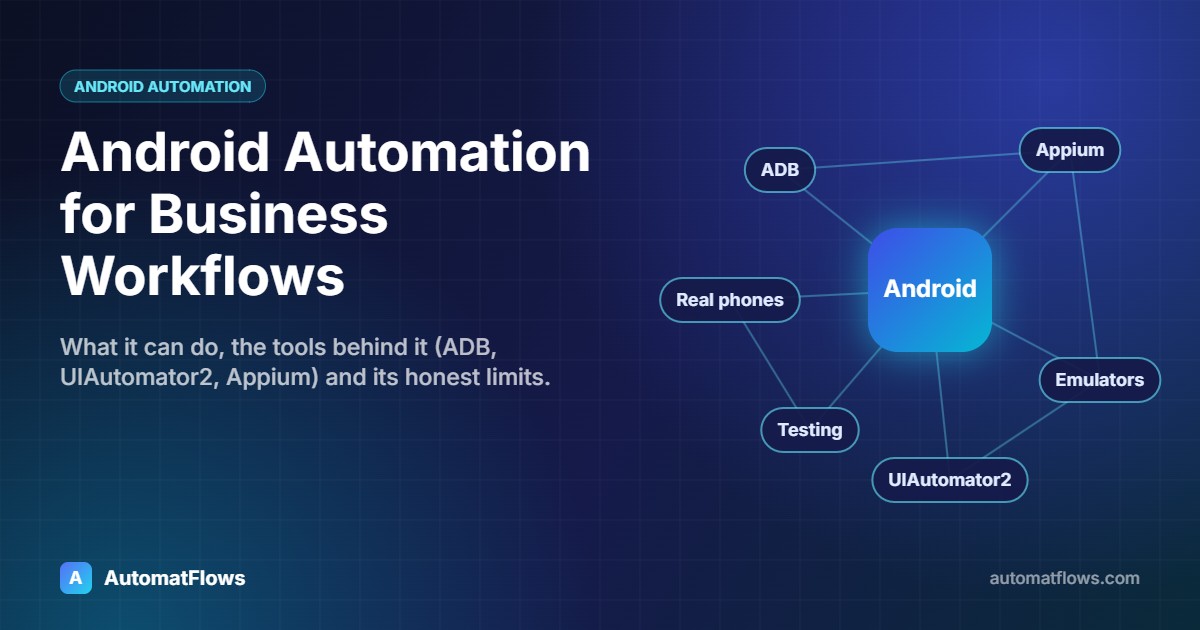
Some work only happens inside a mobile app. There is no website for it, no API you can call, and a person has to sit with a phone and tap through the same screens every day. Android automation lets software do that instead: it opens the app, taps buttons, types text, reads what is on screen and moves on — on a real phone or on an emulator running on a PC.
This article explains how it works, where businesses use it, which tools are involved, and the limits you should know before you start.
How Android automation works
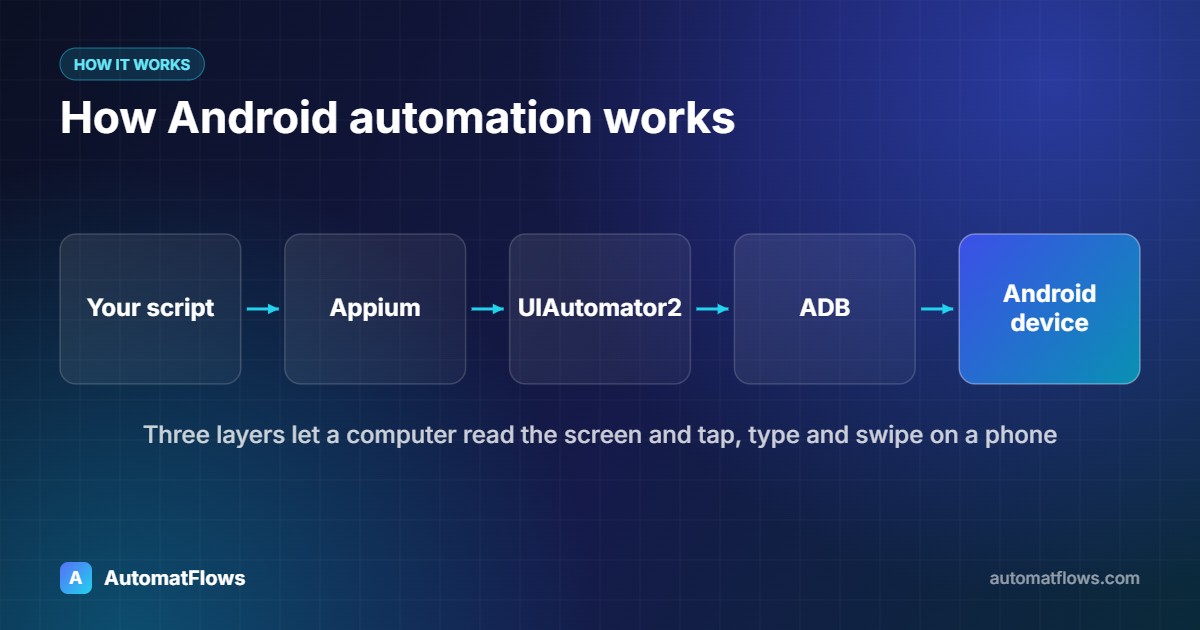
Android gives developers a way to control a device from a computer, mainly through three layers:
ADB (Android Debug Bridge) — the command-line connection between a PC and a phone or emulator. It installs apps, starts them, sends taps and key presses, copies files and captures screenshots.
UIAutomator2 — Android's own framework for reading the screen as a tree of elements (buttons, text fields, lists) and acting on them by their text, ID or description instead of by pixel position.
Appium — an open-source server that wraps UIAutomator2 (and iOS tools) behind one API, so the same automation can be written in Python, JavaScript, Java or C#.
A very small example with plain ADB, useful for quick device tasks:
# open an app, tap a point, type text and take a screenshot
adb shell monkey -p com.example.app -c android.intent.category.LAUNCHER 1
adb shell input tap 540 1650
adb shell input text "Order%s1042"
adb exec-out screencap -p > order-1042.png
Tapping by coordinates breaks as soon as the layout or screen size changes, so real workflows use element-based automation. The same idea with Appium in Python:
from appium import webdriver
from appium.options.android import UiAutomator2Options
from appium.webdriver.common.appiumby import AppiumBy

options = UiAutomator2Options()
options.app_package = 'com.example.app'
options.app_activity = '.MainActivity'

driver = webdriver.Remote('http://127.0.0.1:4723', options=options)
driver.find_element(AppiumBy.ACCESSIBILITY_ID, 'Search').click()
driver.find_element(AppiumBy.ID, 'com.example.app:id/query').send_keys('Order 1042')
status = driver.find_element(AppiumBy.ID, 'com.example.app:id/status').text
print('Order 1042:', status)
driver.quit()
Business uses of Android automation
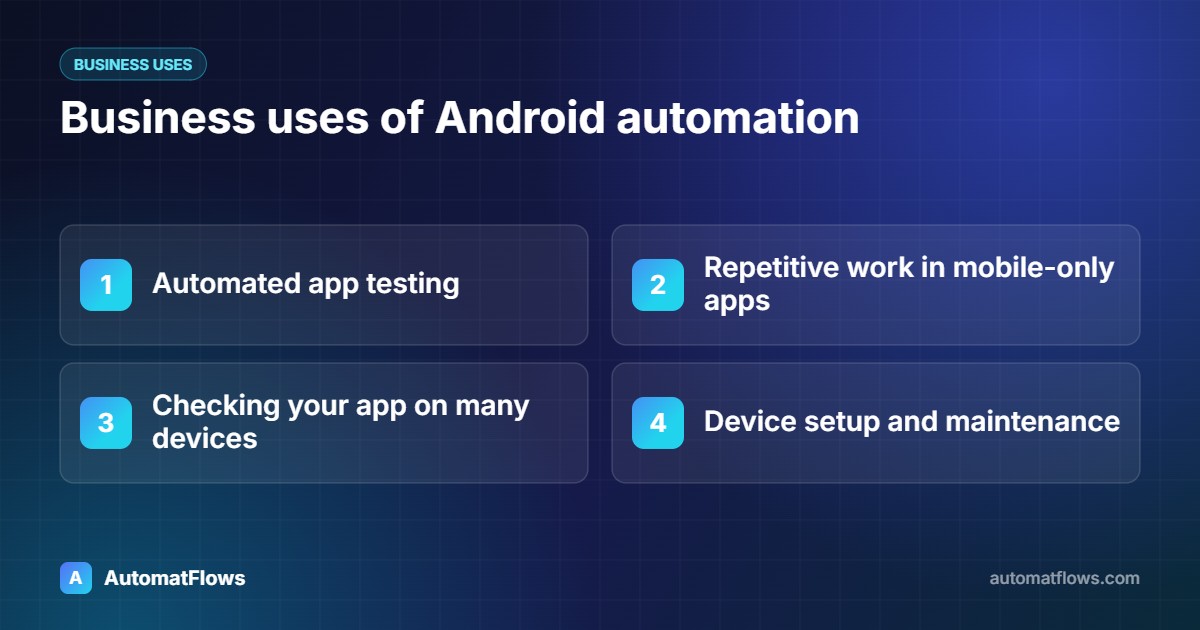
1. Automated app testing
The most common use. Every time a new version of your app is built, an automated test suite opens it on one or more devices, signs in, goes through the important flows — sign-up, search, checkout, payment screens — and reports anything that broke. Teams catch problems before users do and stop repeating the same manual checks for every release.
2. Repetitive work inside mobile-only apps
Some suppliers, delivery partners and internal tools only offer an Android app. Automation can enter orders, update stock, check statuses or download receipts from those apps on a schedule, and pass the results to a spreadsheet or your own system.
3. Checking how your app or listing looks on many devices
Screenshots of the same screens on different screen sizes and Android versions, captured automatically, show layout problems that are easy to miss on one test phone.
4. Device setup and maintenance
When a business manages many phones or tablets — for staff, kiosks or point-of-sale — installing apps, changing settings and collecting logs can be scripted instead of done one device at a time.
Real phones or emulators?
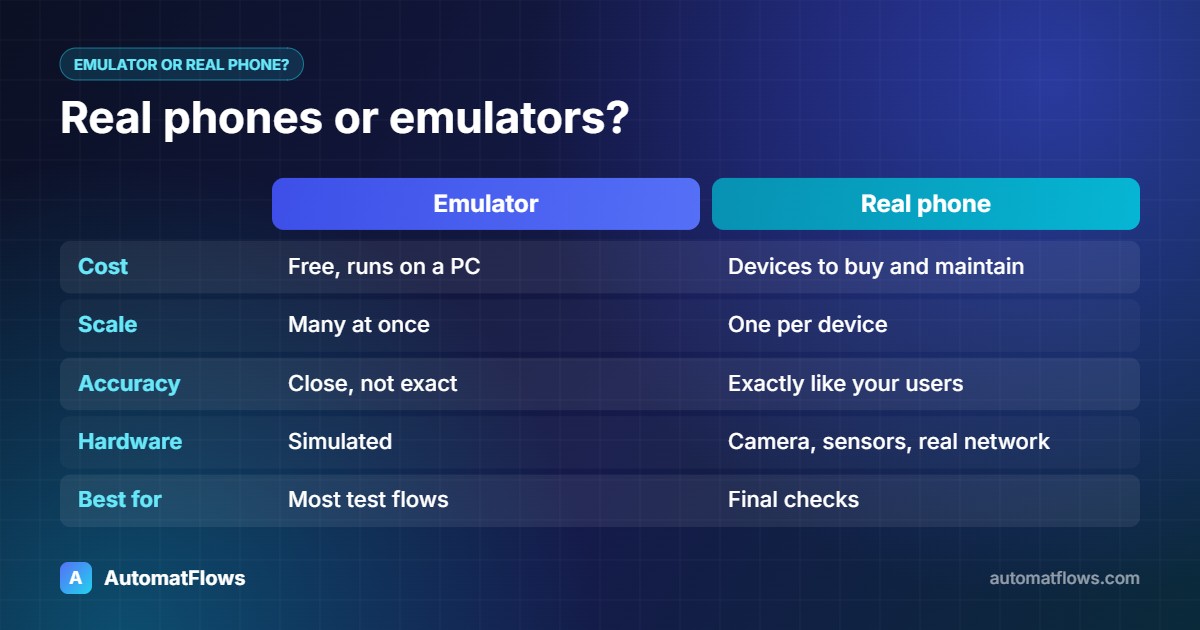
Emulators (Android Studio's emulator, Genymotion, LDPlayer, BlueStacks and others) run on a PC, are easy to reset and copy, and many can run side by side. They suit testing and workflows that need many separate, clean instances. See our Android emulator automation service for parallel setups.
Real devices behave exactly like your users' phones — camera, sensors, real network and performance — and some apps refuse to run on emulators. They cost more to buy and maintain.
Many teams test most flows on emulators and keep a few real devices for final checks.
Honest limitations
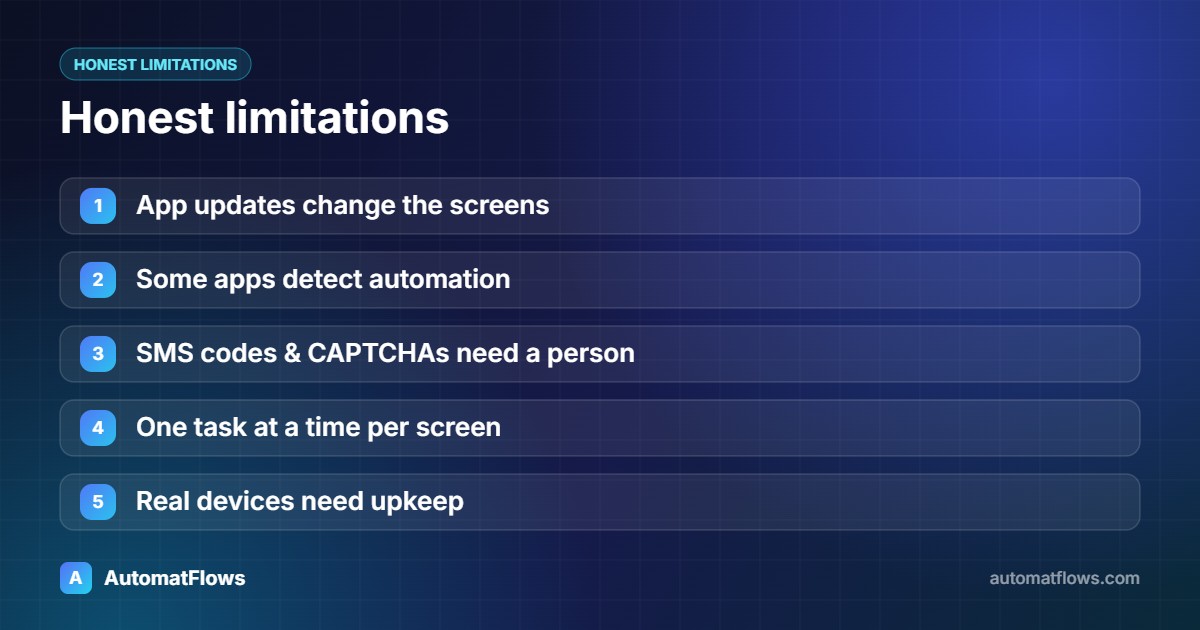
App updates change the screens. When an app's layout or element IDs change, the automation has to be updated. Element-based selectors and clear logs keep this manageable, but it is ongoing work.
Some apps resist automation. Banking and security-sensitive apps may detect emulators or automation and block them. Respect each app's terms of service and automate only accounts and data you are allowed to use.
One-time codes and CAPTCHAs. Logins that need an SMS code or a human check usually need a person or a proper integration, not a workaround.
Speed. A phone can only do one thing at a time on screen, so large volumes need several devices or emulators running in parallel.
Hardware upkeep. Real devices need charging, updates and occasional restarts; a device farm is equipment to look after.
Before you start: a short checklist
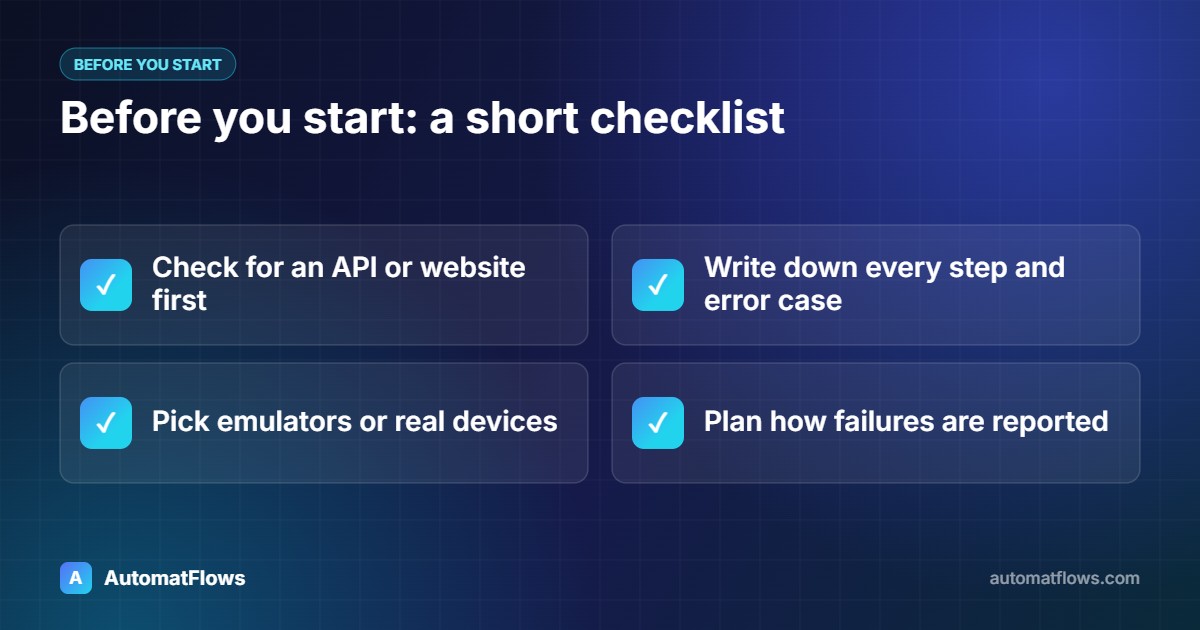
Check whether the same work can be done through an API or a website — that is usually faster and more stable (see browser automation vs API automation).
Write down the exact steps a person takes in the app today, including the error cases.
Decide between emulators and real devices based on the app and the volume.
Plan how failures are reported, so a broken run is noticed the same day.
Work with us
AutomatFlows builds Android automation for apps, devices and repetitive mobile tasks — from automated test suites to scheduled workflows inside mobile-only apps — and parallel emulator setups when volume matters. Describe your workflow and we will tell you honestly whether Android automation is the right tool for it.